
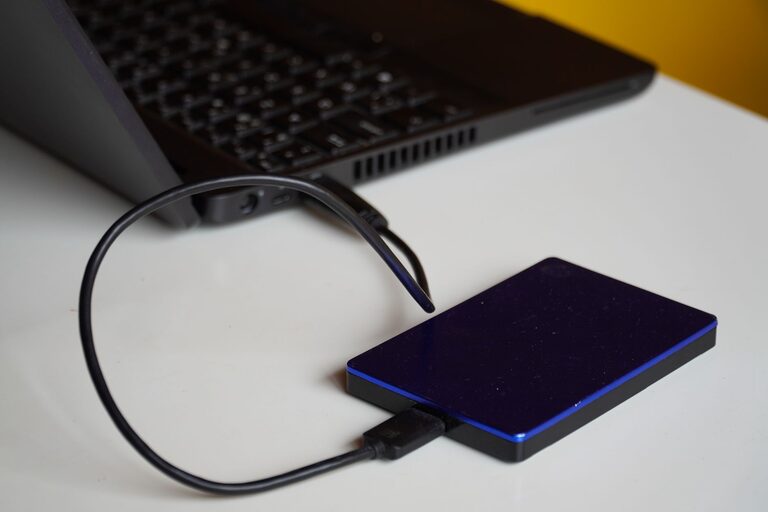
Backing up your photos and files is one of the best ways to protect your valuable memories and important documents. Whether it is family photos, work files, or personal projects, losing them due to device failure, accidental deletion, or theft can be devastating. This guide will walk you through the basics of backing up your data, explore different backup methods, and offer practical tips to ensure your files are safe and accessible.
Why Backing Up Your Photos and Files Matters
Digital data can be surprisingly fragile. Hard drives can crash, smartphones can be lost, or files can be accidentally deleted. Without a backup, these events could mean permanent data loss. Backing up your photos and files:
– Protects against hardware failure
– Guards against accidental deletion or corruption
– Provides a recovery option in case of theft or loss
– Helps you migrate files when upgrading devices
By creating copies of your essential data, you gain peace of mind and avoid costly or heartbreaking data losses.
Types of Backup Methods
There are several ways to back up your photos and files. Choosing the right method depends on your needs, budget, and technical comfort.
1. External Hard Drives and USB Drives
Using an external hard drive or USB flash drive is a straightforward way to back up your data. These devices connect to your computer and allow you to copy files manually or automatically.
Advantages:
– Large storage capacity
– One-time purchase, no ongoing fees
– Easy to use and portable
Considerations:
– Prone to physical damage or loss
– Needs manual updating unless automated backup software is used
– Should be stored separately from your computer for extra safety
2. Cloud Storage Services
Cloud storage providers like Google Drive, Dropbox, Microsoft OneDrive, and Apple iCloud store your files on secure remote servers accessible via the internet.
Advantages:
– Automatic syncing and backup options
– Accessible from multiple devices
– Often includes version history and file recovery
Considerations:
– Requires internet access
– May involve subscription fees for larger storage
– Privacy and security depend on provider policies
3. Network Attached Storage (NAS)
NAS is a personal file storage device connected to your home or office network. It acts like a private cloud and allows multiple devices to back up data.
Advantages:
– Centralized, local storage accessible from multiple devices
– Can be configured for automatic backups
– More control over data compared to third-party cloud providers
Considerations:
– Initial setup and cost can be higher
– Requires some technical know-how
– Needs proper security configuration
4. Backup Software Solutions
You can use dedicated backup software that automates the backup process, whether to an external drive, NAS, or cloud.
Advantages:
– Scheduled backups without manual effort
– Encryption and compression features
– Incremental backups save space and time
Considerations:
– May require purchase or subscription
– Setup takes time to configure correctly
How to Create a Backup Plan for Your Photos and Files
A good backup strategy involves more than just copying files once. Follow these steps to build a reliable plan:
Step 1: Identify Important Files
Start by listing the photos, documents, videos, and other files that are most important to you. This helps prioritize and manage your backup storage space.
Step 2: Choose Backup Methods
Decide which backup methods suit your lifestyle:
– For quick manual backups, an external drive may suffice.
– For continuous backup, cloud storage or software automation works well.
– Consider combining methods for extra safety (e.g., cloud + external drive).
Step 3: Set a Backup Schedule
Regular backups are key. Depending on how often your files change, you might back up:
– Daily or weekly for frequently updated files
– Monthly or quarterly for more static collections
Use calendar reminders or backup software schedules to stay on track.
Step 4: Organize Your Backup
Keep your backed-up files organized similarly to your primary folders. This makes recovery straightforward and prevents confusion.
Step 5: Test Your Backups
Periodically check your backup files to ensure they open correctly and are complete. This avoids surprises when you need to restore data.
Tips for Effective Photo and File Backup
– Keep multiple backup copies: Follow the “3-2-1” rule—3 copies of your data, on 2 different media types, with 1 copy stored off-site or in the cloud.
– Use file naming and folders consistently: This simplifies finding and restoring files.
– Encrypt sensitive files: Use encryption tools if your backups contain private or confidential information.
– Update backups after major changes: Don’t forget to back up after events like trips, projects, or financial seasons.
– Protect backup devices: Store external drives in a safe, dry place and avoid physical shocks.
How to Back Up Photos on Different Devices
Windows PC
- Connect an external drive or sign in to a cloud service.
- Use File Explorer to copy photos and files to your backup location.
- Alternatively, use built-in tools like File History or third-party backup software.
- Use Time Machine to automatically back up to an external drive.
- Store files in iCloud for easy syncing across devices.
- Manually copy files to external drives or other backup locations as needed.
Mac
Smartphones (iOS and Android)
– Enable automatic photo backup via services like Google Photos, iCloud Photos, or OneDrive.
– Export important files to cloud storage or connect to a computer for manual backup.
– Regularly check your backup settings to ensure they are up to date.
What to Do If You Lose Your Photos or Files
If files are accidentally deleted or lost, check:
– Your backup copies immediately.
– Recycle Bin or Trash on computers.
– Cloud storage trash or recovery options (many services keep deleted items temporarily).
– Use file recovery software if backups are unavailable.
Remember, the best defense against data loss is having a reliable backup in place.
—
Backing up your photos and files might seem like a chore, but it’s a simple habit that pays off immensely. Start with one method today, and gradually build a backup system that fits your needs. Your memories and documents will thank you!